How Long Do PS5 Controllers Take To Charge Charging Times And Battery Tips
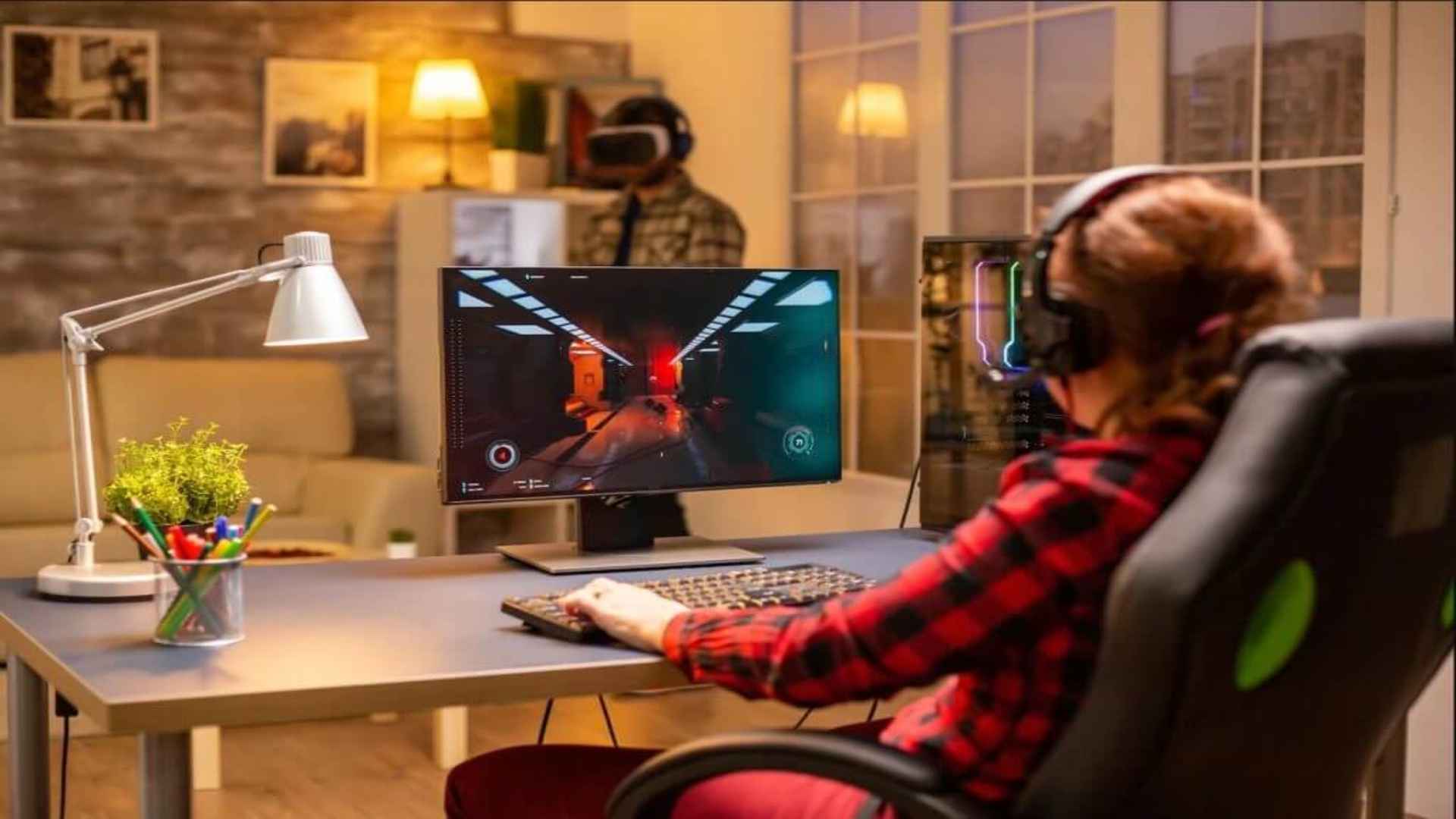
The PlayStation 5 DualSense controller is celebrated for its immersive haptic feedback and adaptive triggers, but keeping it powered up is essential for uninterrupted gaming sessions. Understanding how long it takes to charge full battery capacity helps players manage their gaming routines efficiently. Knowing the optimal charging methods can also extend the lifespan of your controller's internal battery over time.
Average Charging Times for the DualSense Controller
On average, a fully depleted PlayStation 5 DualSense controller takes approximately three hours to reach a full charge. Connecting the controller directly to the PS5 console using the included USB Type-C cable provides a steady and reliable power supply. Charging time may vary slightly depending on whether the console is actively running games or set to Rest Mode.
Using official accessories like the DualSense Charging Station offers similar charging speeds without occupying the console's USB ports. The charging station delivers a consistent voltage that fills two controllers simultaneously in roughly three hours. Third-party chargers may offer different speeds depending on their power output ratings.
Best Methods for Charging Your PS5 Controller
The most convenient way to charge your controller is while the PlayStation 5 is in Rest Mode. To enable this feature, navigate to the console Settings, select System, and adjust the Power Saving options to supply power to USB ports. Setting the USB power duration to three hours ensures your controller charges fully without wasting electricity overnight.
You can also use external USB wall chargers, provided they meet the required power specifications. Standard smartphone chargers with a 5V/1.5A output or higher generally work well without harming the internal battery. Avoid using ultra-fast wall adapters that exceed recommended voltage levels, as they can cause overheating.
Tips to Extend DualSense Battery Life
To maximize the battery performance during active gameplay, you can adjust several controller settings within the PS5 menu. Reducing the intensity of the haptic feedback and adaptive triggers significantly conserves power during long play sessions. Dimming the brightness of the light bar on the controller also decreases overall battery consumption.
Another helpful setting is configuring the controller to turn off automatically after a period of inactivity. Setting the auto-off timer to 10 or 30 minutes prevents the battery from draining when you take breaks. Taking these simple steps ensures you spend more time playing and less time waiting for your controller to recharge.